¶ How to change the owner of a mailing list
¶ Using the mailman web interface
If you have an account with admin access to the list, then you can easily add or remove owners from within the interface.
See more about How to access the mailing list web interface
Within the admin page for the list, select Users, then Owners.

From there you will see this

Enter the email and, if desired, the display name of the desired owner. If the email address entered is not registered as a user in mailman 3, they will have to create an account.
¶ Change owner from the control panel
If you don’t have access to a list in mailman web interface, you can change the owner through the control panel.
Changing the owner of a mailing list from the control panel will remove all existing owners of the mailing list.
Navigate to the hosting order and to the email list tab that contains your mailing list item, then click the edit button next to the mailing list you want to change. You’ll see this screen
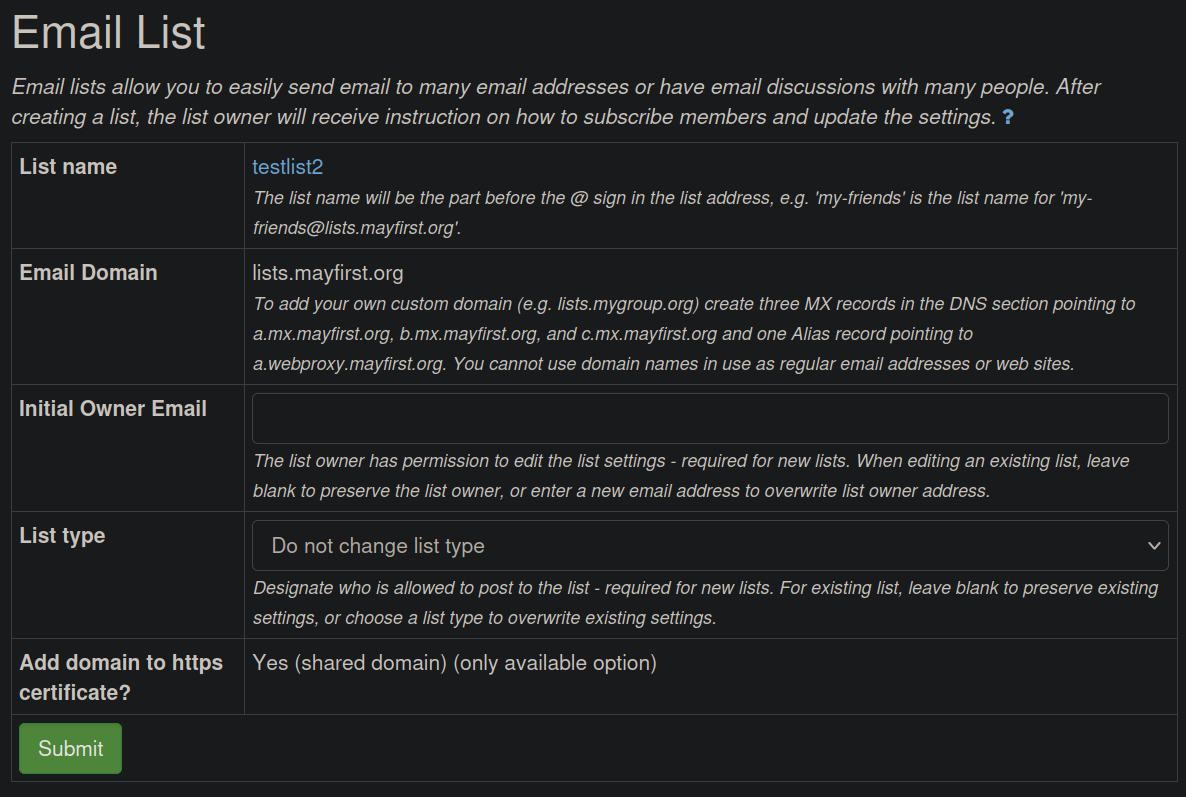
Enter the email address you want to be the owner of the list, and hit submit. If that email address is not registered to a mailman account, they will have to create an account.
See more about How to access the mailing list web interface