If your hosting order is using our new infrastructure, the way to connect to your website host using ssh or sftp has changed.
¶ Enable Server Access
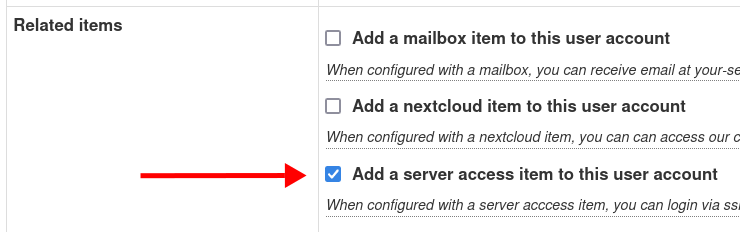
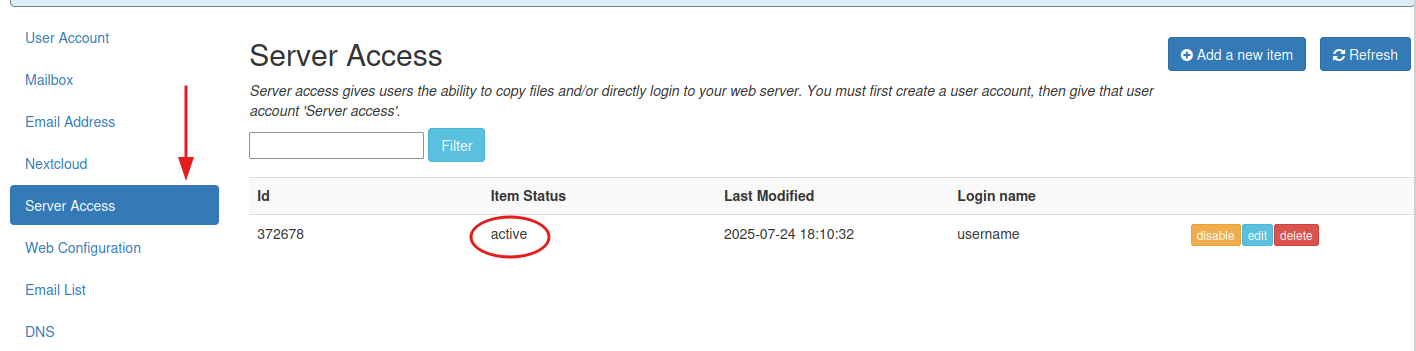
In the members control panel, ensure your username has been granted "Server Access". You can do that be either editing the user account record, and putting a check mark in the "Server Access" checkbox. Or, by clicking the "Server Access" tab and creating a new record.
¶ Make sure it is active
After activating Server Access using either of the above two methods it is important to confirm that the status of the username is active in the Server Access tab. If the status is pending please wait until the status becomes active before attempting to connect.
¶ Two Factor Authentication
Before connecting for the first time via ssh/sftp you must login to the member control panel with the same account you wish to use to connect via ssh/sftp. Once connected your account will be authorized to access the web server via ssh or sftp for the next 24 hours. You can do this step manually or automate it. If you have just enabled server access, log out and log back in again.
If successful, you should see a blue banner at the top of the page similar to this one.
"Server access has been granted for example - you can access your web site via ssh or sftp for the next 24 hours via example@shell.mayfirst.org."
If you do not see a banner like this one review and repeat the above steps again.
¶ Connection details
Username: Your username
Host: shell.mayfirst.org
Depending on the software and method you use to connect you may additionally need to specify the port and protocol
Port: 22
Protocol: sftp or secure FTP or SSH
¶ Using an SFTP client software
If you would like a point and click program with a graphical interface, some good options are:
- All platforms FileZilla
- Windows: WinSCP
- macOS: Cyber Duck
- Linux: gFTP
Most Secure FTP programs will show your local folders on the left side and the server server folders on the right. You can drag files and folders from the left side to the right side. Be sure to place all files and folders that you want accessible in your web site in the "web" folder.

¶ Command line sftp
Windows, Mac and Linux also include a command line sftp program you can use from a terminal/console
Try: sftp username@shell.mayfirst.org (replace "username" with your actual username)
¶ Connecting with ssh
You can also connect to the server using the Secure Shell Protocol (SSH) to access an interactive command line console on the server.
Windows, Mac and Linux also include a command line ssh program you can use from a terminal/console
Try: ssh username@shell.mayfirst.org (replace "username" with your actual username)
The PuTTY dedicated ssh client is another option for Windows.
¶ Verify the server key fingerprint
The first time you connect you will be asked to verify the server fingerprint. The shell server fingerprint should be any one of the following:
SHA256:pf8jpRMneF6JohZAUaX/8KK3H3DvJ9+ueIH1vz81N6s(RSA)SHA256:GlEYUfQZGOmy6NEe1TPqYpJDvF50t2/Fl8+QCfB6ez4(ECDSA)SHA256:wooJEliExpK39SCWm3Q5hGerhuUkkKLr2PkIiK/4KZg(ED25519)MD5:ce:d6:7b:1d:d0:42:1e:fc:72:cc:5e:ce:bf:0f:a8:dd(ECDSA)MD5:af:52:3a:d6:3d:1f:ce:da:7e:1a:2a:b8:d6:45:52:87(ED25519)MD5:01:16:75:b6:35:31:4c:fc:50:af:63:44:40:21:9d:ea(RSA)