¶ Install Jitsi Meet on Linux
Jitsi Meet is a program to hold video-based web meetings. This page covers how to install the jitsi meet app on a Linux computer.
¶ App Image
The jitsi meet developers regularly release an appimage of the jitsi meet app for Linux. An AppImage is an alternative to the standard way programs are distributed for Linux (e.g. on Debian based system we use the apt or apt-get or dpkg tool to install .deb files, on Redhat, we use the rpm tool, etc).
AppImages work on all versions of Linux.
¶ Download
The first step is to download and save the most recent release that ends with the .AppImage extension.
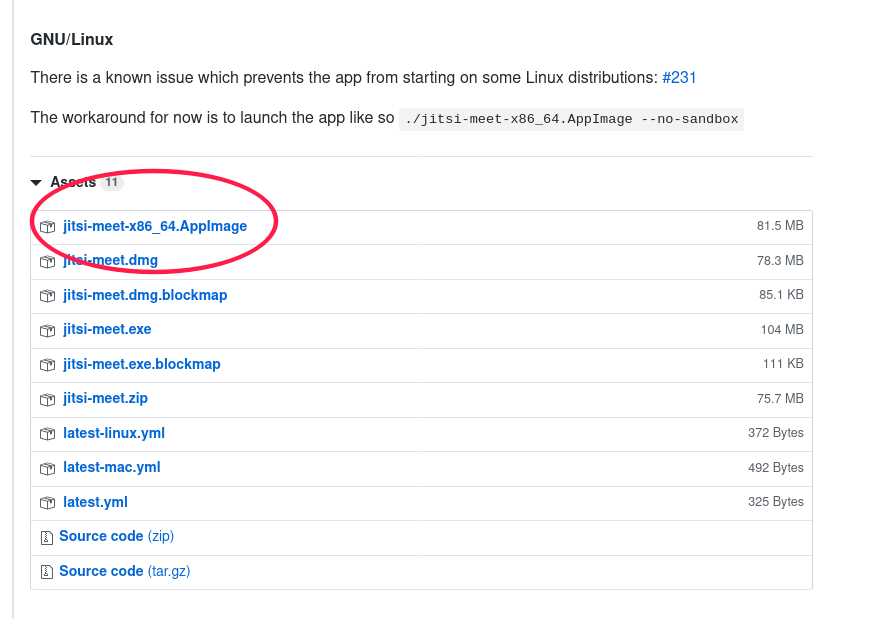
By default, your browser may automatically save it to your Downloads folder. If you are prompted to choose a folder, please choose your Downloads folder.
¶ Make it startable and findable
Next, we have to create a "desktop" file for it, so it will show up in your menu system.
To make this file, you will need to open your terminal program. You can open a "terminal" by searching for terminal in your list of applications.

When you click on it, it will open up a screen, often with a blinking cursor.
Then, Select the lines below...
chmod 755 ~/Downloads/jitsi-meet-x86_64.AppImage
mkdir -p ~/.local/share/applications
wget "https://raw.githubusercontent.com/jitsi/jitsi-meet-electron/master/resources/icons/icon_128x128.png" -O ~/Downloads/jitsi-meet.png
printf "[Desktop Entry]\nEncoding=UTF-8\nVersion=1.0\nType=Application\nTerminal=false\nExec=${HOME}/Downloads/jitsi-meet-x86_64.AppImage --no-sandbox\nName=Jitsi Meet\nIcon=${HOME}/Downloads/jitsi-meet.png\n" > ~/.local/share/applications/jitsi-meet.desktop
which update-desktop-database && update-desktop-database ~/.local/share/applications
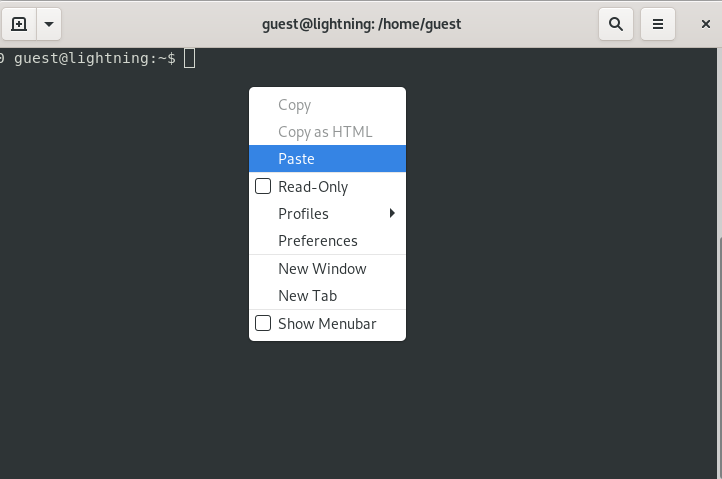
... and then paste them into your terminal program.
¶ Logout
Before it shows up in your menus and list of applications, you may need to logout and log back in again.