¶ How to participate in a Jitsi Meet meeting
¶ Getting started
¶ Open a Jitsi Meet meeting in a web browser
Start by opening the URL address for your meeting directly in your web browser. This URL starts with: https://meet.mayfirst.org/ or https://i.meet.mayfirst.org/ and ends with a unique address for example: https://meet.mayfirst.org/mymeeting
For best results, use a compatible browser laptop or desktop computer or mobile device with sufficient computing power and a stable internet connection.
Installing Jitsi Meet application is optional
Details about installing dedciated app
The dedicated app is not compatible the interpretation features available at https://i.meet.mayfirst.org
If you are unable to or prefer not to open a meeting in your web browser you can install Jitsi Meet as an application directly on your device.
- Install on Android from Google play store or F-droid
- Install on Apple IOS
- Install Desktop app based on electron available for Windows, macOS and GNU/Linux.
¶ Before joining a meeting
- Configure your microphone, speakers, and camera
Advanced video settings
- Adjust video quality
- Enable background blur
- Use a virtual background
Advanced configuration settings
- Notifications
- Profile
¶ Joining a meeting
-
Enter your name
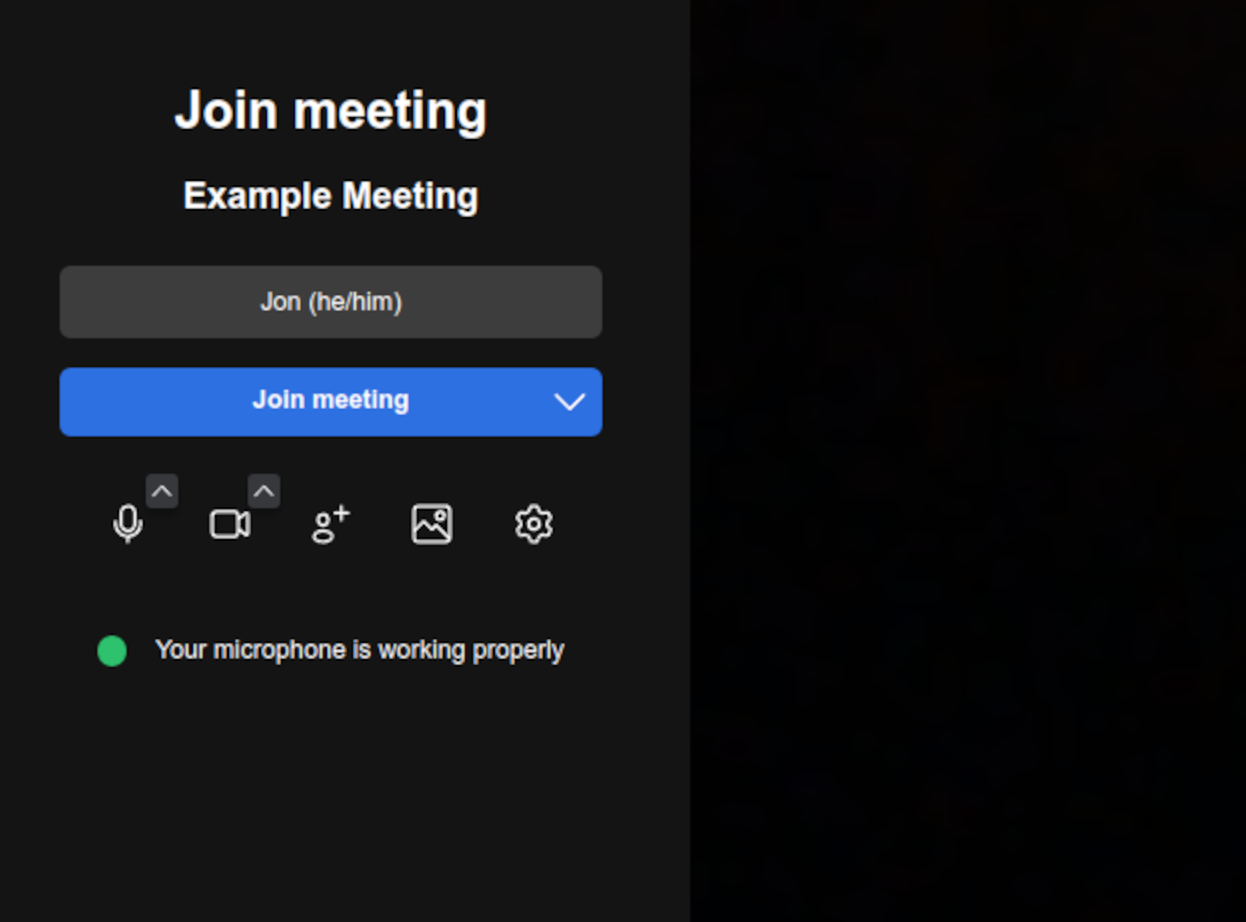
-
Adjust microphone and camera access
- Enable or disable both microphone and camera access according to your preference before joining.
-
Click Join Meeting
¶ Participating in a meeting
- Change your view (tile view and speaker view)
- Mute and unmute audio
- Use chat
- Use interpretation channels
- Use reactions and raise your hand
- Share your screen and audio
To share your screen in a jitsi meeting, click on the 3rd icon from the left (it looks like an arrow on top of a box). If this is your first time sharing, you will likely be asked by your browser to authorize screen sharing. After authorizing, you can select to share a specific window or the entire screen (sharing your entire screen is helpful if you want to share content that is in multiple windows or apps). If your browser/computer supports sharing audio, you can click on the toggle to share audio when you are selecting between sharing the window or the entire screen. Once you have successfully shared your screen, a mirror of what you are screen sharing appears alongside the other participant video feed. - To stop sharing your screen, you can click on the same icon that is third from the left or sometimes browser has a pop up in the top of the screen that has a button that stops screen sharing.
Additional meeting features
- Join and leave breakout rooms
- Create a poll
- Record a meeting (when available)
- Additional participant settings